
How to create a torrent on Mac and seed it
Short answer
Press ⌘N (File ▸ Create New Torrent…), click Add file or Add directory, click Pick fastest to tick working trackers, keep Start seeding ticked and click Create and save as…. TorMonitor saves the .torrent file and starts seeding immediately; share the file or its magnet link (right-click ▸ Copy Magnet URI) and keep TorMonitor open until others have a full copy.
Creating a torrent is the easiest way to share a big file or folder with many people. You seed it once, and everyone who downloads it helps spread it further, so your upload isn't the bottleneck for long.
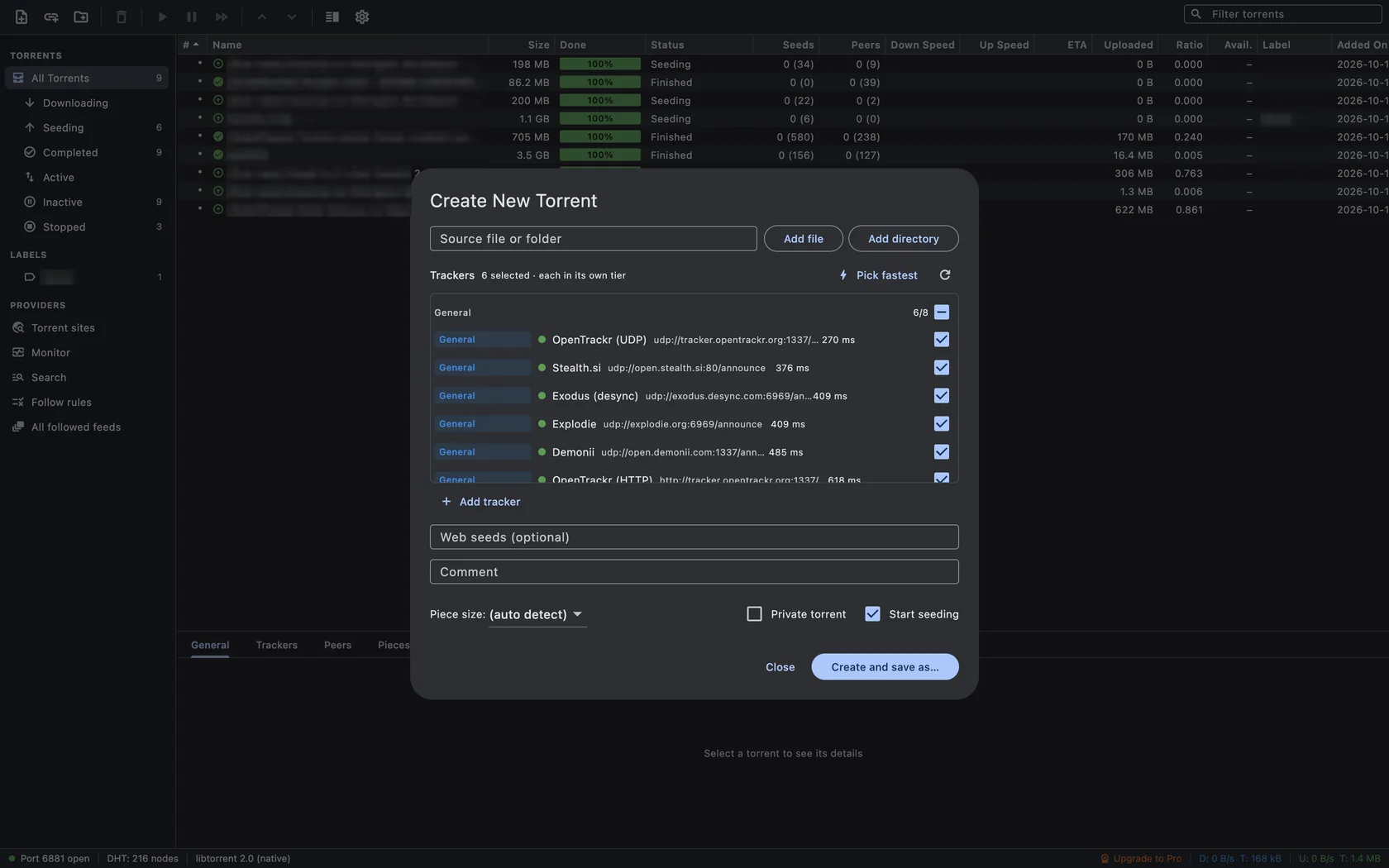
Steps to create a torrent and seed it#
- Choose File ▸ Create New Torrent… or press ⌘ N.
- Click Add file for a single file or Add directory for a whole folder. The path appears in Source file or folder.
- In Trackers, click Pick fastest to tick the 6 fastest trackers that are responding right now (green dot and response time). See how to pick trackers for the details.
- Optionally add Web seeds (optional) (HTTP or HTTPS links to the same files, one per line) and a Comment that downloaders will see.
- Leave Piece size on (auto detect) unless you have a reason to change it.
- Leave Private torrent unticked for public sharing. Tick it only for a private tracker; it turns off DHT and Peer Exchange for this torrent.
- Keep Start seeding ticked.
- Click Create and save as…, choose where to save the
.torrentfile and click Save. TorMonitor hashes the files (you'll see "Hashing…" for large folders) and closes the window when it's done.
The new torrent appears in your list as complete and Seeding. Because TorMonitor already has every piece, there is nothing to download: it waits for peers and uploads to them.
Share it#
- The .torrent file: send the file you just saved. Anyone can open it in a torrent app.
- A magnet link: right-click the torrent and choose Copy Magnet URI, or click Copy magnet link in its General tab. A magnet link is just text, so it fits in a message or on a web page.
Keep it seeding#
- Leave TorMonitor running until at least one other person has a complete copy; after that the torrent can live on without you, as long as someone keeps seeding.
- Don't move or rename the original files while seeding. If you must, use Move Data To… in the torrent's right-click menu so TorMonitor follows them.
- Turn on Keep running in the menu bar when the window is closed under Preferences ▸ General so seeding continues with the window closed.
- Check the status bar: Port … open means other peers can connect to you, which matters most when you're the only seeder.
- To stop seeding automatically later, set a seeding goal.
Questions#
How do I create a torrent and seed it?#
Press ⌘N, add your file or folder, click Pick fastest for trackers, keep Start seeding ticked and click Create and save as…. The torrent starts seeding as soon as it's saved.
How do I pick trackers for a new torrent?#
Let TorMonitor test them: the tracker list shows a green dot and a response time for every tracker that answers, and Pick fastest ticks the 6 quickest. Full details in how to pick trackers for a new torrent.
Why does nobody download my torrent?#
People need the .torrent file or magnet link, and they need to reach you. Make sure the status bar shows the port as open, that your trackers have green dots, and that TorMonitor is running.
What piece size should I choose?#
Leave it on (auto detect). TorMonitor picks a size that suits the total size of your files.
Can I create a torrent of a single file?#
Yes, use Add file instead of Add directory.