
Can I see who is downloading my torrent?
Short answer
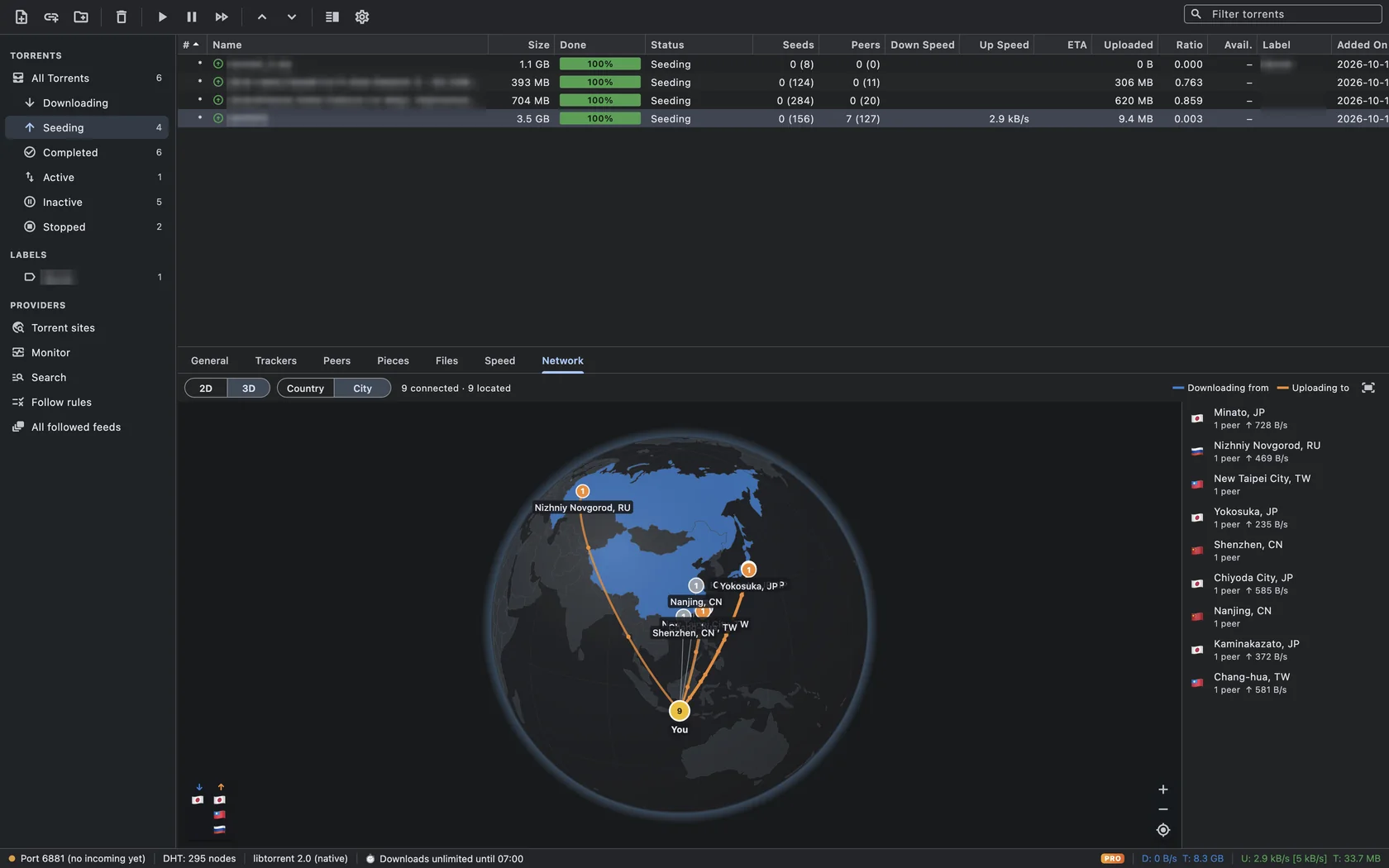
Yes, as far as BitTorrent allows. Select the torrent and open the Peers tab to see every connected peer's IP address, client, progress and speed. With TorMonitor Pro, the Network tab puts them on a map or 3D globe, with orange arcs for peers you upload to and blue arcs for peers you download from. You see addresses and locations, not names or accounts.
When you seed a torrent, the people downloading from you are peers in the swarm. Your client is connected to each of them directly, so it knows their IP address, which software they use, how much of the torrent they already have and how fast data is moving. TorMonitor shows all of that, and with Pro, where in the world they are.
Steps to see your peers#
- Select the torrent in the list. If the detail panel is hidden, press ⌘ I or click Show / Hide Detailed Info in the toolbar.
- Open the Peers tab for a table of every connected peer: IP and port, client, flags, percentage done, download speed, upload speed, and how much you've exchanged.
- Open the Network tab to see the same peers on a map. Switch between 2D and 3D, and group them by Country or City.
- Hover a city on the map or in the list on the right to see each peer there with its IP address, client and speed.
Reading the map#
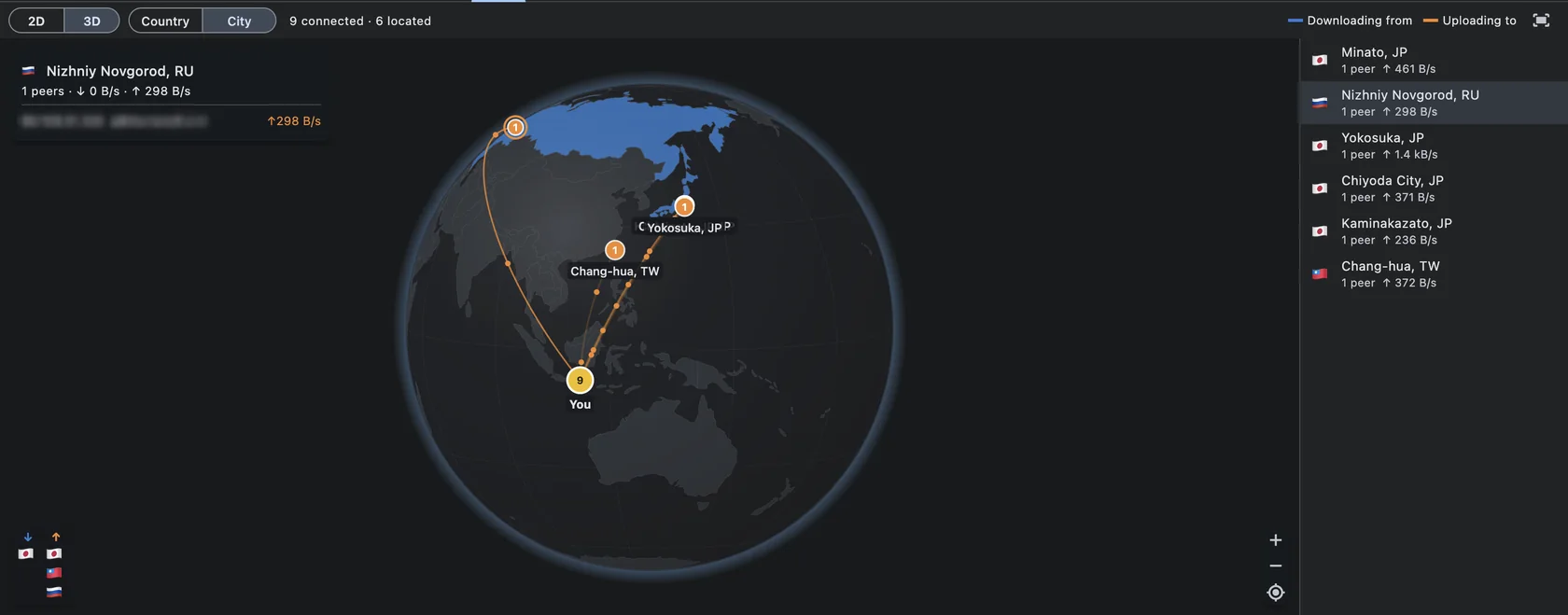
- Orange arcs are peers you are uploading to. These are the people downloading your torrent right now.
- Blue arcs are peers you are downloading from.
- Grey peers are connected but idle.
- Small particles move along each arc in the direction the data flows.
- The bottom-left corner shows the top source and top leecher countries as flags.
- The header line, for example "9 connected · 9 located", tells you how many peers have been placed on the map so far.
What you can and can't see#
You can see the network side of each connection: IP address, port, approximate location (country and city), the peer's BitTorrent client and version, and the transfer between you. You can't see who the person is. An IP address can belong to a VPN, a seedbox, a university or a shared home connection, and geolocation is approximate, especially at city level.
The Peers tab is free. The Network map is part of TorMonitor Pro; without it you see a preview with example peers.
Questions#
Why does my torrent show seeds but no peers on the map?#
The map shows peers that are connected to you now. The numbers in brackets in the torrent list, such as 8 (127), are the whole swarm reported by trackers; only the first number is connected.
Why can't some peers be located?#
Lookups are made in batches and cached, so new peers appear on the map after a few seconds. Peers on your local network are labelled "Local network" and never looked up.
Is it legal to look up peers' locations?#
TorMonitor uses the IP addresses your client is already connected to and a public geolocation service, the same information any torrent client shows in its peer list.
Can I stop someone from downloading my torrent?#
Not individually, but you can refuse whole countries. See how to block a country from your torrents, or stop seeding at a set ratio with seeding goals.