
How to block a country from downloading or connecting to your torrents
Short answer
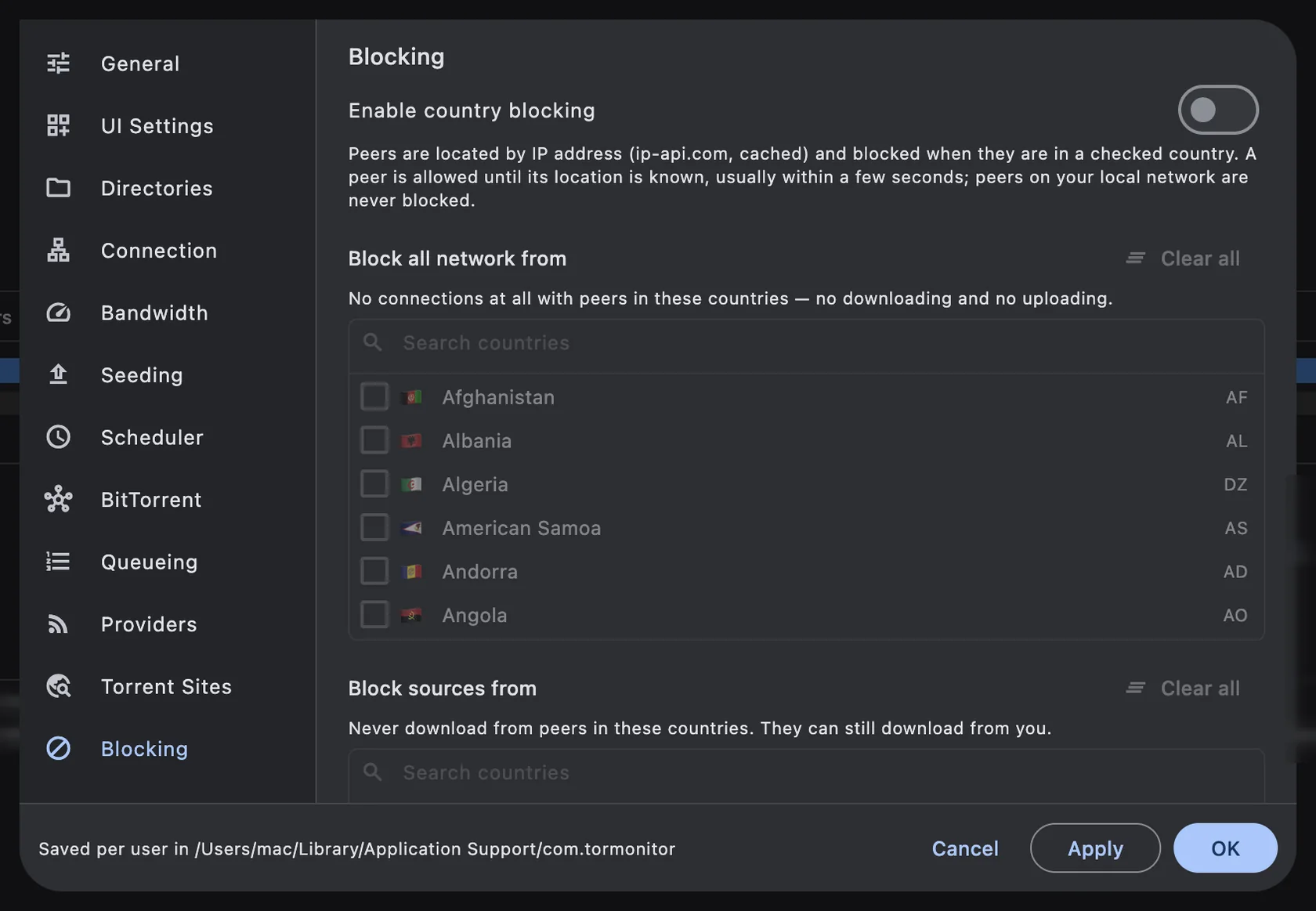
In TorMonitor, open Preferences (⌘,) ▸ Blocking, turn on Enable country blocking, and tick the country under Block all network from. Use Block leechers from to only stop uploading to that country, or Block sources from to only stop downloading from it. Country blocking is part of TorMonitor Pro.
Every peer in a swarm has an IP address, and every IP address belongs to a country. TorMonitor looks up the country of each peer it meets and, when that country is on one of your lists, tells the BitTorrent engine to refuse it. No IP filter files to download, no lists to update by hand.
Steps to block a country#
- Open TorMonitor ▸ Preferences… (or press ⌘ ,) and choose Blocking at the bottom of the list.
- Turn on Enable country blocking.
- Under Block all network from, type the country name in Search countries and tick it. Repeat for each country.
- Click OK or Apply. The change takes effect right away, also for peers that are already connected.
Which list should I use?#
TorMonitor has three lists because "block a country" can mean three different things:
| List | What happens to peers from that country |
|---|---|
| Block all network from | No connection at all. You don't download from them and they don't download from you. |
| Block sources from | You never download from them. They can still download from you. |
| Block leechers from | You never upload to them. You can still download from them. |
If your goal is "stop people in country X from downloading my torrent", use Block leechers from. You keep the benefit of their uploads while sharing nothing back. If you want no contact at all, use Block all network from.
How it works#
- Peer locations come from the ip-api.com geolocation service. Each address is looked up once and cached on your Mac for 30 days.
- A new peer is allowed until its location is known, which normally takes a few seconds.
- Peers on your local network are never blocked and their addresses are never sent for lookup.
- While blocking is on, the Blocking page shows how many peers are blocked fully, as sources and as leechers in this session.
Tip Open a torrent's Network tab before you decide. It shows which countries your peers are in and which ones you upload the most to. See how to see who is downloading your torrent.
What country blocking does not do#
Country blocking decides who you exchange data with. It does not hide your own IP address: trackers, the DHT and other peers can still see it. If you need to hide your address, use a VPN or set a proxy under Preferences ▸ Connection ▸ Proxy server.
Questions#
Does blocking a country slow my downloads?#
It can, if many of the seeders are in that country. Blocking sources from a country removes them as upload partners for you. Blocking only leechers does not reduce your download speed.
Can I block a single IP address instead of a country?#
Not from the Blocking page: TorMonitor blocks by country. To keep away from specific peers entirely, a VPN or a private tracker is the usual approach.
Is country blocking free?#
No, it is one of the TorMonitor Pro features, together with the Network map, scheduler and seeding goals. Pro is a one-time purchase.
Do blocked peers know they are blocked?#
They only see that the connection is closed or refused, the same as with any unreachable peer.