
How to pick trackers for a new torrent (with live tracker status)
Short answer
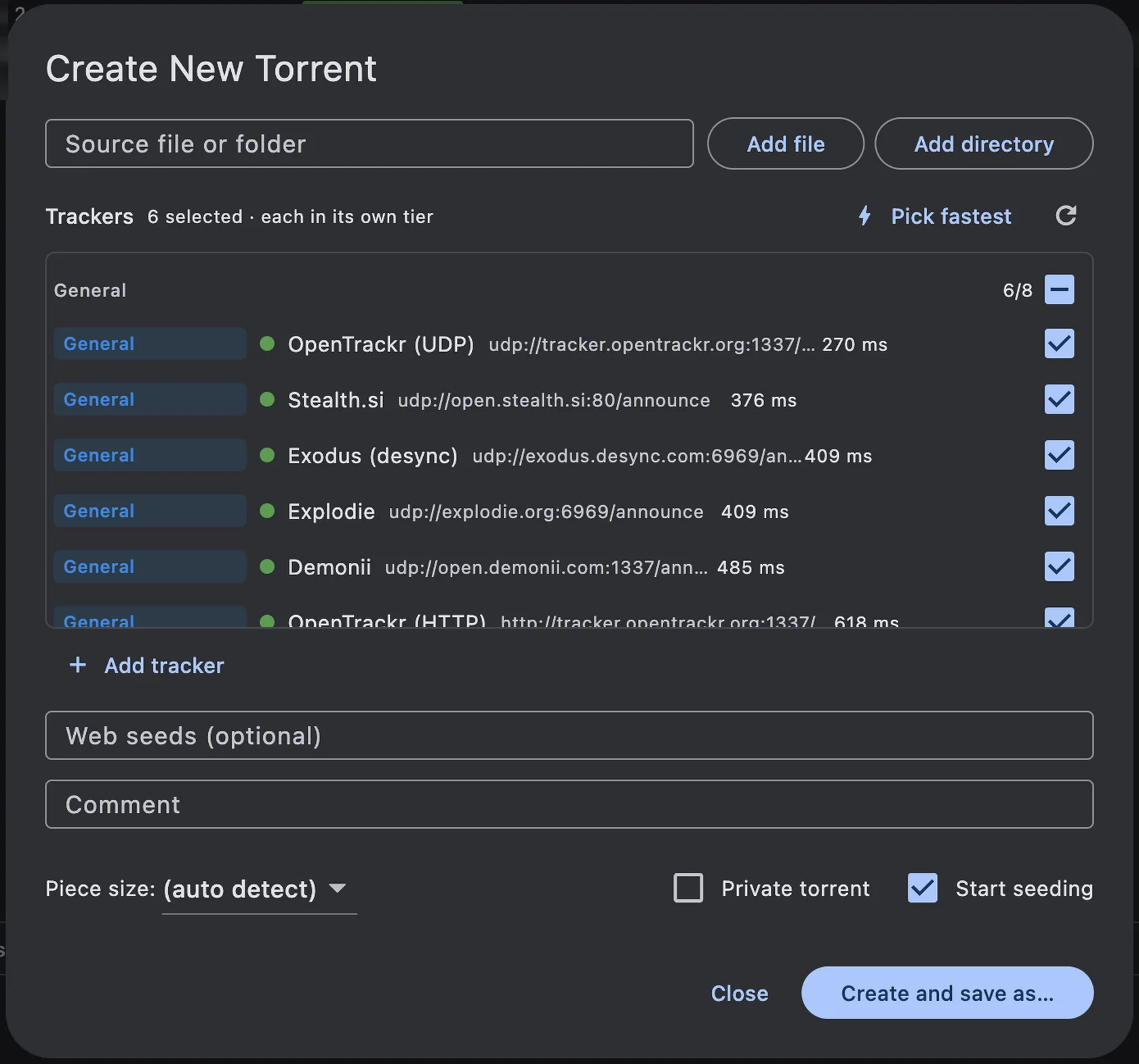
In File ▸ Create New Torrent… (⌘N), the Trackers list checks every tracker for you. A green dot and a time such as 270 ms mean it's responding, so tick those, or click Pick fastest to tick the 6 quickest working trackers in one go. Click ↻ to check them all again, Untick to drop the ones that stopped responding, and Add tracker for your own announce URL.
A tracker is the server that introduces the peers of a torrent to each other. When you create a torrent, the trackers you put in it decide how quickly other people find you. Public trackers come and go, so a list copied from the internet often contains dead ones. TorMonitor checks every tracker before you use it and shows you which ones are alive and how fast they answer.
Steps to pick trackers#
- Choose File ▸ Create New Torrent… or press ⌘ N.
- Look at the Trackers list. TorMonitor checks the trackers as the window opens. A small spinner shows a check in progress, then each tracker gets a status dot and its response time.
- Click Pick fastest to tick the 6 fastest trackers that are responding and untick the rest. Or tick the ones you want yourself; the tick box in a category header ticks or unticks the whole category.
- Click ↻ (Check trackers now) if the list was last checked a while ago, or before sharing something important.
- If a warning says "ticked trackers are not responding", click Untick to drop them.
- To use a tracker that isn't listed, click Add tracker, paste its Announce URL (for example
udp://tracker.example.org:1337/announce), optionally give it a name and category, and confirm. It's checked straight away and kept in your list for next time.
The line above the list, for example "6 selected · each in its own tier", confirms how many trackers go into the torrent.
Reading the tracker status#
| What you see | Meaning |
|---|---|
| Green dot and a time, e.g. 270 ms | The tracker answered. Lower is faster. |
| Red dot, dimmed row, "not responding" | The tracker didn't answer: offline, blocked, or the address is wrong. |
| Grey dot | Not checked yet, or a WebTorrent (ws/wss) tracker that can't be checked. |
| Spinner | Being checked right now. |
Hover the dot for details, such as "Responding · 270 ms · checked 5 min ago" or the reason a tracker failed ("host not found", "no answer").
Responding trackers are sorted to the top of each category, fastest first, and dead ones sink to the bottom.
Good to know#
- Each tracker gets its own tier. Peers announce to all of the trackers in your torrent at once, instead of treating the later ones as backups. More working trackers means more chances to be found.
- 5–8 trackers is plenty. More rarely helps, and dead entries only slow down other people's clients.
- The check is private. TorMonitor doesn't announce your torrent to test a tracker. It sends a UDP handshake, or an HTTP request for a random torrent that doesn't exist, and only looks at whether the tracker answers.
- Results are remembered. Trackers are re-checked automatically when their last result is more than 6 hours old, and your selection is kept for the next torrent you create.
- Your own trackers can be removed with the remove button on their row. Built-in ones stay.
- Private trackers: use the announce URL your tracker gives you (it usually contains your personal passkey), tick Private torrent, and don't add public trackers next to it.
Questions#
How do I pick trackers for a new torrent?#
Open File ▸ Create New Torrent…, wait a moment for the green dots, and click Pick fastest. TorMonitor ticks the 6 fastest trackers that are responding right now. Add your own with Add tracker if you have a preferred one.
Which public trackers are the best?#
The ones that answer quickly today. That changes over time, which is why TorMonitor tests them instead of relying on a fixed list. In the screenshot above, OpenTrackr, Stealth.si, Exodus, Explodie and Demonii all answered within half a second.
Why is a tracker shown as not responding?#
The server may be down, your network or internet provider may block it, or the address may be wrong. Click ↻ to check again later; if it stays red, untick it.
Can I add trackers to a torrent I already have?#
Yes. Right-click the torrent in your list, choose Add Trackers… and paste the announce URLs, one per line.
Do I need trackers at all?#
Not strictly: peers can also find each other through the DHT and Peer Exchange. But a few working trackers make the first connections much faster, especially for a brand-new torrent that only you are seeding.